Shipping Sobamail Apps
Now that we seem to have a convergent implementation, let's test the waters by creating a private instance that can be used across replicas of our mailbox, and then hand the app to other people.
Everything in this chapter happens in the Application Manager, the system app that manages the applications of your mailbox. It takes an app through these stages:
- Deployment (freezing) turns the developer-mode source tree into an immutable, hashed version the mailbox knows.
- Instantiation gives a deployed version a data store of its own -- a private instance in your Apps folder.
The Application Manager
Open the Application Manager from the launcher -- click the  Apps folder
and then the Application Manager tile -- or from the main window's Message
▸ App Manager entry. It opens in a tab of its own:
Apps folder
and then the Application Manager tile -- or from the main window's Message
▸ App Manager entry. It opens in a tab of its own:
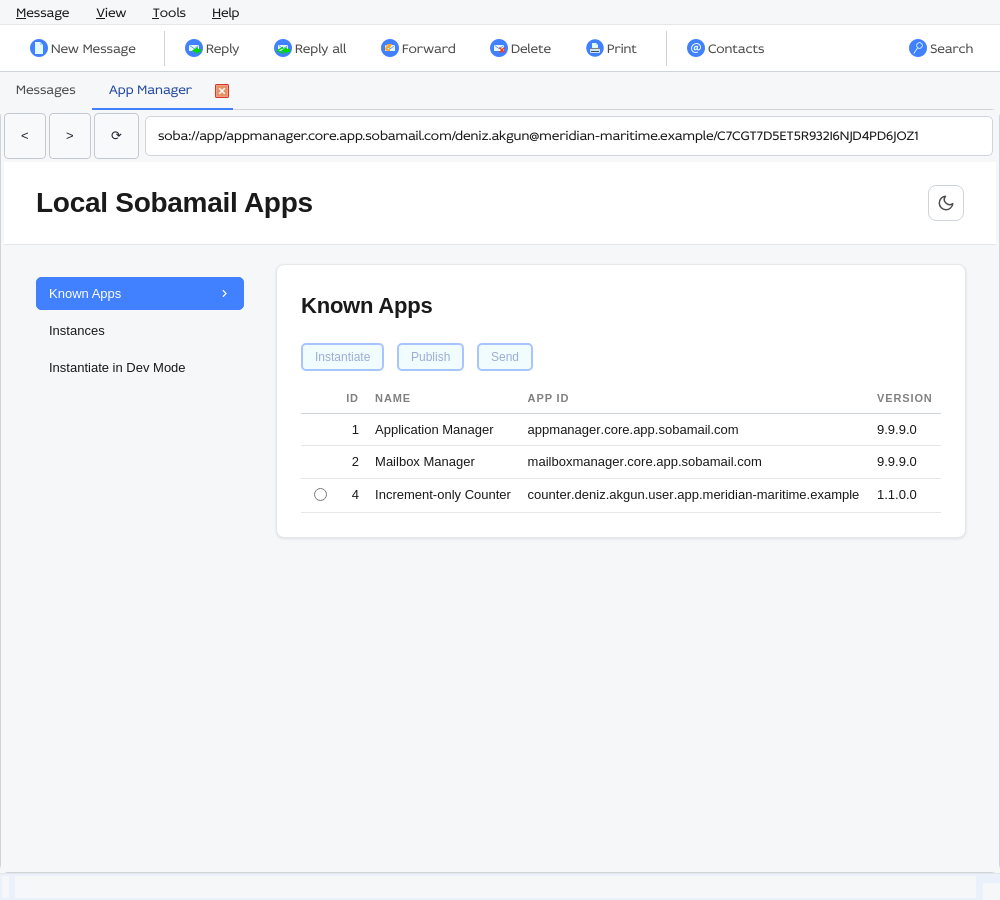
Its navigation column has three screens:
| Screen | What it shows |
|---|---|
| Known Apps | One row per app id the mailbox knows, at its newest deployed version. This is where you instantiate, share and publish. |
| Instances | Every app instance of the mailbox: the system apps, your deployed instances and your developer-mode instances. This is where you deploy, upgrade and delete. |
| Instantiate in Dev Mode | The form that creates a developer-mode instance and its develroot, as in the first chapter. |
Every action answers with a banner above the card -- green for success, red with the reason for a refusal. Close it with its X.
Deployment
Deployment (aka freezing) is the process of generating a structured message
(objkey = {https://sobamail.com/module/appmanager/v1}AppInfo ) that contains
the digest values of all components of a Sobamail application along with
miscellaneous metadata.
- The digest values of the backend module and its imports are all computed separately. All JS modules from all apps are deployed to a common folder shared by all Sobamail applications.
-
As for the frontend assets, a zip file is created from the contents of the
assets/folder in the develroot which is used as input to digest computation.If you used a frontend framework, be sure to run a release build before performing the deployment operation.
Now let's do this for our Counter app:
- Navigate to the app develroot.
- Don't forget to abort the
npm run dev-watchjob if it's still running. - Change to the
ui/folder and runnpm run build. If all went according to plan, you should now have the release build of the app frontend in theassets/folder in develroot.
Now launch Sobamail and open the Application Manager:
- Go to the Instances screen and find your app. A developer-mode instance
carries the
 marker in its
Id column, and a second line under it names its Devel root -- the
folder that holds its source. Ensure it's the right one.
marker in its
Id column, and a second line under it names its Devel root -- the
folder that holds its source. Ensure it's the right one. - Click the radio button next to your app and click the Deploy button at the top of the screen.
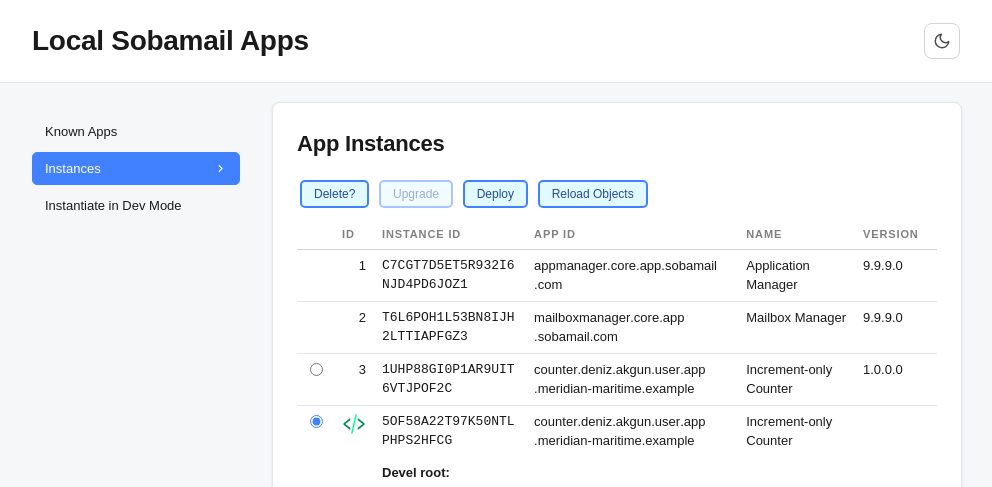
The Application Manager reads Mutator.mjs from the develroot, resolves and
hashes every module it imports, zips assets/ and stores the result as a new
version of your app id. The banner reads App Deployment OK! id=N -- and your
app now appears in the Known Apps screen at that version.
If not, check the Sobamail logs, fix the errors shown there and try again. Some common mistakes:
- Ensure you have the correct hashes for imports. The Sobamail runtime tells you the expected value, so just copy/paste it from the logs.
- Ensure your version is greater than all deployed versions of your app id. A
version that is already deployed answers App was already deployed as id=N
and stores nothing, whatever changed in the source; a lower one is refused
outright. Bump
static versionin the Mutator and deploy again. - Ensure the
idon the Mutator class matches the app id on the Instances screen. - The components of one version may not exceed 32 MiB together.
!!! note "Deploying does not touch the developer-mode instance" The developer-mode instance stays where it is, with its data, and keeps running from the develroot. Deployment only adds a frozen version to the mailbox's catalogue; you can keep developing and deploy the next version later.
Two more buttons on this screen serve a developer-mode instance:
- Reload Objects makes the runtime re-read the
objectsmap of the Mutator module, so an instance that declares interest in a new object key starts receiving it without being recreated. - Delete? asks for a confirmation (Delete! flies out beside it; the action cannot be undone) and removes the instance.
Instantiation
Now that your Application is deployed, you can instantiate your application to use it.
While app deployment freezes the app, app instantiation assigns it a data store. You can create as many instances of your app as you like, and you can keep your app instances private or share them with as many Sobamail users as you like. It's also possible to add/remove collaborators to your app after instantiation.
Switch to the Known Apps screen. Each row is one app id at its newest deployed version; the system apps are listed too, but without a radio button, since a mailbox has exactly one instance of each.
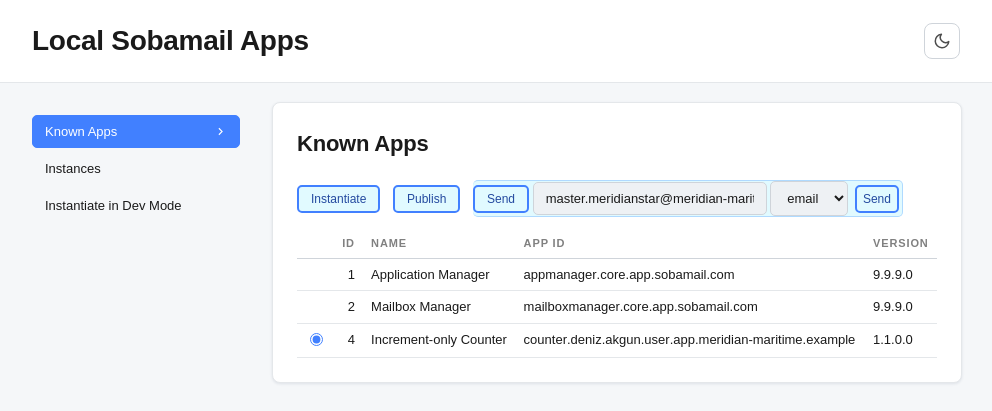
Select your app and click Instantiate ▸ Private. The banner reads App instantiation OK: id=… instid=…, and the new instance appears in the Apps folder under the app's name, with a fresh instance id. Click it to launch the app.
Unlike the developer-mode instance, this one is replicated: every replica of your mailbox -- another computer, the web client -- gets the same instance and the same data, and the mutations you generate converge on all of them.
| Instance | Lives in | Replicated to |
|---|---|---|
| Developer mode | This replica only | Nowhere: mutations are not replicated, hashes are not checked |
| Private | Your mailbox | Every replica of your mailbox |
| Shared | Every mailbox named as a user | Every replica of each of those mailboxes |
Upgrading an instance by hand
The Instances screen offers Upgrade for an instance that runs an older version than the newest the mailbox knows -- after you deployed a newer version of your own app, for example. It opens a dialog, Select newer version, that names the instance's current version and lists the newer ones, newest first. Pick one and click Upgrade; the banner reads App upgraded successfully! and the instance carries on with its data under the new version. No newer versions available. is what the dialog says when there is nothing to move to.
Housekeeping for developer-mode apps
The Instantiate in Dev Mode screen is the form from the first chapter: an App Id and an App Name, with a sample of each already filled in.
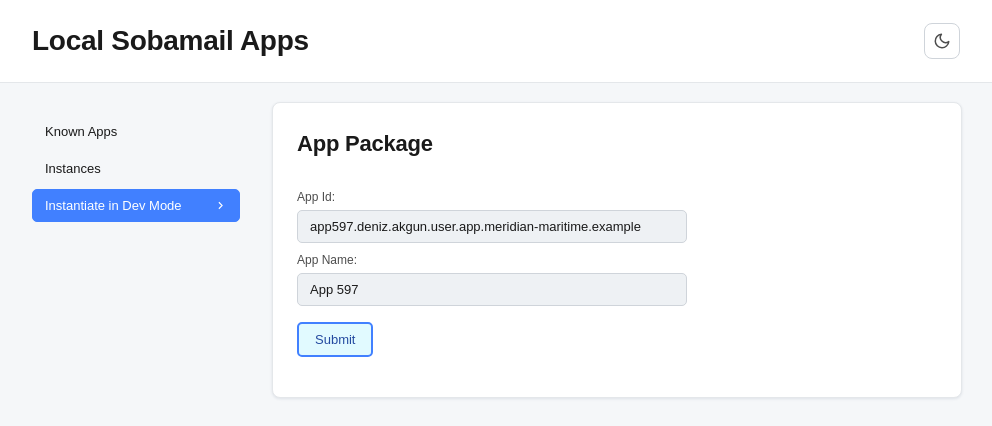
Submit creates the develroot under apps/devel/<app id> in the mailbox's
data directory -- a Mutator.mjs skeleton, a static assets/index.html and
a README -- and the developer-mode instance that runs from it. Submitting the
same app id again does not create a second instance: it renames the existing one
to the new app name. The app name is 3 to 32 characters long.
A developer-mode instance appears in the Instances screen with the developer-mode marker and its devel root, and in the Apps folder under its name; it never appears in Known Apps until it is deployed.
More to come
This only covers apps that run on your mailbox. We will update this document with more ways of sharing apps with other users soon.