Signing Messages
A signed message carries proof of who sent it and that it arrived as it was written. Sobamail signs a message with the certificate that names the sender address, and checks the signature of every signed message it receives. This page covers both sides: choosing to sign in the compose window, and reading the seal a signed message shows in the reader pane and the message list.
Choosing to sign
The Signature button sits in the compose window's header, right of the From drop-down. It is a split button: the arrow opens its menu, which offers three choices.
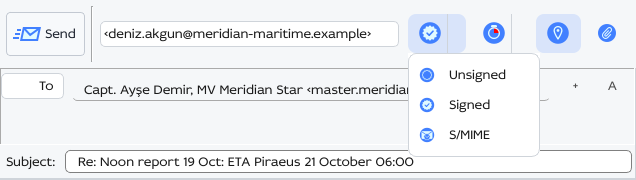
| Choice | Icon | Effect |
|---|---|---|
| Unsigned |  | The message goes out as it is. |
| Signed |  | Signs the message for Sobamail recipients. |
| S/MIME |  | Signs the message for Sobamail recipients and, with an S/MIME signature, for every other mail client. |
The button shows the icon of the active choice, and its tooltip names it — Signature: Signed. While Signed or S/MIME is active the button stays pressed, and clicking it goes back to Unsigned; while the message is unsigned, clicking it opens the menu.
Pick S/MIME for recipients outside Sobamail
Signed is enough when everyone you write to reads their mail in Sobamail. A recipient who reads it in another mail program sees the signature only when you pick S/MIME, which adds the signature those programs understand.
Other mail programs need the Sobamail root certificates
An S/MIME signature from Sobamail verifies in another mail program only once that program trusts the Sobamail root certificates. They are not among the authorities mail programs and operating systems ship with, so until the recipient installs them, their program reports the signature as coming from an authority it does not trust. The roots, in DER format, and how to install them are in the Platform PKI reference.
The choice follows the sender address
Your choice is kept for the address you compose as: a new message from that address starts out with it, and picking another address under From brings up the choice kept for that one. An address you have made no choice for starts out Unsigned.
The certificate behind the signature
Signing uses the Data auth certificate that names the sender address. The Certificates window lists it, and renews it when it is due. While no certificate names the address, the compose window's status line says so — No certificate names alice@example.com yet: the message will go out unsigned — and Send sends the message unsigned.
A message you compose as a department or as one of your additional addresses is signed with your own certificate, which attests that address beside your own. The recipient's seal then names both: bob@example.com for sales@example.com.
When a message is signed
A message is signed when you press Send, for the date it carries:
- A draft is saved unsigned, whatever the choice. The signature is added when the draft is finally sent.
- A delayed message is signed as you send it, for its delivery time, and waits in the Outbox signed. Cancelling it there puts it back in Drafts unsigned, and its signed copy moves to Trash — see Outbox: retrying and cancelling.
The certificate has to be valid at the date the message carries. When it is not — a delivery time past the certificate's expiry, say — the message stays in the compose window and the status line says so: The signing certificate is not valid at 2026-12-01 09:00:00, the date of this message. Pick an earlier delivery time, or send it unsigned.
Reading a signed message
A signed message shows a seal: at the end of its subject in the message list, and before its subject in the reader pane's header. Its colour and mark tell whether the message is signed, and whether its signature holds:
| Seal | Meaning |
|---|---|
| yellow outline | The message is unsigned. |
| green, with a check | The signature verifies: the message comes from the address that signed it, as it was signed. |
| red, with a cross | The signature does not verify. |
| grey, with a question mark | The message is signed; its signature is not verified yet. |
Hover the seal for the details:
| Seal | Tooltip |
|---|---|
| yellow outline | This message is not signed |
| green | The signature of this message verifies: signed by alice@example.com — or signed by bob@example.com for sales@example.com when a member signed for a department or an alias |
| red | The signature of this message does not verify; its certificate names alice@example.com |
| grey | This message is signed, its signature is not verified yet; its certificate names alice@example.com |
A red or grey seal is a button: click it for Verify again, which checks the signature once more and redraws the seal. A signature is verified when the message arrives; one that arrived before the signer's certificate was trusted here, or on a replica that has not checked it yet, shows grey until it is verified again.
What the signature covers
The body and the attachments you see are the ones the signature covers. A signed message that was altered on its way shows a red seal, and what it shows you is still what was signed.
Seals in the message list
A signed message carries its seal at the end of its subject in the message list, in Simple View and in the multi-column layout alike: green when its signature verifies, red when it does not, grey until it is verified. An unsigned message carries no seal in the list.
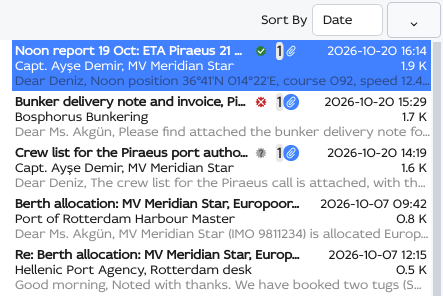
The list follows the verification: a seal that Verify again turns green turns green in the list as well.
Icon reference
| Function | Icon |
|---|---|
| Signature: Unsigned / Signed / S/MIME | |