Finding a Folder
A mailbox grows folders faster than a tree can show them, and a department mailbox brings a whole second tree. This page covers the two ways to get to a folder, or to a message in one, without scrolling: filtering the folder trees by typing a name, and searching messages across folders.
Filtering the folders
To find a folder by name, click into the folder tree or the Departments pane and type the beginning of the name. The first letter or digit opens a filter box under the account badge, and what you type goes into it.
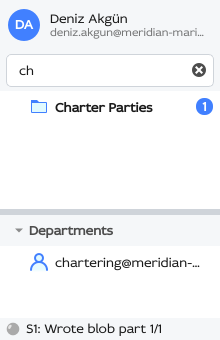
As you type, both trees narrow down to the folders whose name starts with what the box holds — your own mailbox's folders and every department's alike:
- A folder whose name matches stays as it is.
- The folders leading down to a match stay as well, so you can see where it lives. They are drawn faded, and they are expanded for as long as the filter is on.
- Every other folder is hidden.
A department's own row matches on its address, so typing the start of a department's name brings up that department with its folders.
Upper and lower case count as the same letter, by the language rules of the mailbox the folder is in. In a Turkish mailbox, for example, i finds İnci and ı finds Işık.
Keys in the filter box
| In the filter box | Effect |
|---|---|
| Enter or Down | Selects the first folder that matches — your own mailbox's before the departments' — and moves to the tree, where the arrow keys walk the folders that are left. The filter stays on. |
| Esc, or the × button at the right end of the box | Closes the box and brings every folder back. |
A letter or digit typed on either tree while the box is open is added to what the box holds.
Leaving the filter
When the box closes, the folders are expanded and collapsed the way you had them. A folder you selected while the filter was on stays in sight: the folders above it stay expanded.
The prime-folder shortcuts work while the filter is on: Ctrl+1 through Ctrl+7 jump to a prime folder, and when the filter is hiding that folder, the box closes and every folder comes back.
The filter is for folders; the search box is for messages
The filter box narrows the folder trees and leaves the message list alone. To find a message, use the search box in the toolbar.
Searching messages across folders
When you know what a message says but not where you filed it, search for it across folders rather than hunting for the folder first. Expand the search box (Ctrl+K), open its scope row with the  control, and turn on All Folders:
- The search then runs over every folder of the mailbox instead of the current one.
- In the multi-column layout a Folder column appears, so you can see where each result lives. Open the result, or select it and use Move ▸ from its context menu to file it elsewhere.
The scope toggles decide what the words are matched against — sender, recipients, subject, and optionally the body — and each folder remembers its own search, so switching folders does not lose a query. See Search scope for the toggles and their defaults.
Icon reference
| Function | Icon |
|---|---|
| Search options | |
| Custom folder |  / /  |