Look and Layout
Everything under the View menu changes how the app looks and how the panes are arranged. It is all presentation, and all reversible at any time.
Reader Pane
View ▸ Reader Pane decides whether the message you select is shown inside the main window, and where:
| Choice | Result |
|---|---|
| Hidden | The message list fills the pane, and messages open in their own tab or window on Enter or a double-click. |
| Vertical | The pane sits beside the message list — list on the left, message on the right. |
| Horizontal | The pane sits below the message list — list on top, message underneath. |
The three are mutually exclusive, and the current one is ticked. F8 flips between hidden and shown without opening the menu; when you bring the pane back it returns to whichever orientation you last used.
The splitter between the list and the pane can be dragged to change the split, and its position is remembered per session.
Message List
View ▸ Message List controls how the message list is built.
Flat and Hierarchical
| Mode | What it shows |
|---|---|
| Hierarchical | Replies nest under the message they answer, so a conversation is one expandable tree. |
| Flat | One row per message, no nesting. |
The choice is mailbox-wide: it is remembered and re-applied to every folder you open.
Unread replies in a collapsed thread
In hierarchical mode, a collapsed conversation with unread replies inside it carries a small count so you can see there is something new without expanding it.
Simple View
Simple View switches the list between two row layouts:
| Layout | What it shows |
|---|---|
| Off (multi-column) | Separate columns — sender, subject, date, size, and so on — with a header you sort by clicking. |
| On (single-column) | One compact column per message, combining the key fields, and ending with a muted preview line: the first words of the body, or \<Empty message> when there are none. The column header is hidden and a Sort By: control appears above the list instead. |
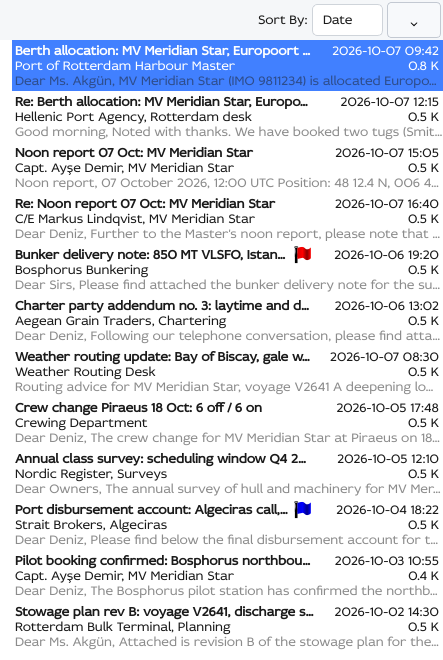
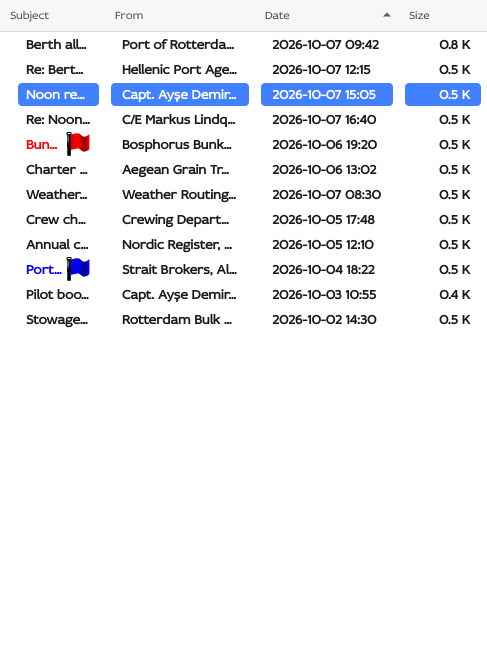
Like the threading choice, Simple View is one setting for the whole mailbox.
Column order and widths, though, are remembered separately for each layout and each kind of folder, so the Inbox and the Outbox each keep their own columns, and switching to Simple View and back returns the multi-column layout as you left it.
Theme
View ▸ Theme picks the colour scheme and the interface font.
Colour schemes
| Theme | Description |
|---|---|
| Classic Light | Plain platform-style widgets on a light background. |
| Classic Dark | The same plain widgets on a dark background. |
| Modern Light | The Sobamail styling, light. |
| Modern Dark | The Sobamail styling, dark. |
On first run the app picks Modern Dark or Modern Light to match what your desktop is already set to. The welcome screen already shows the choice:
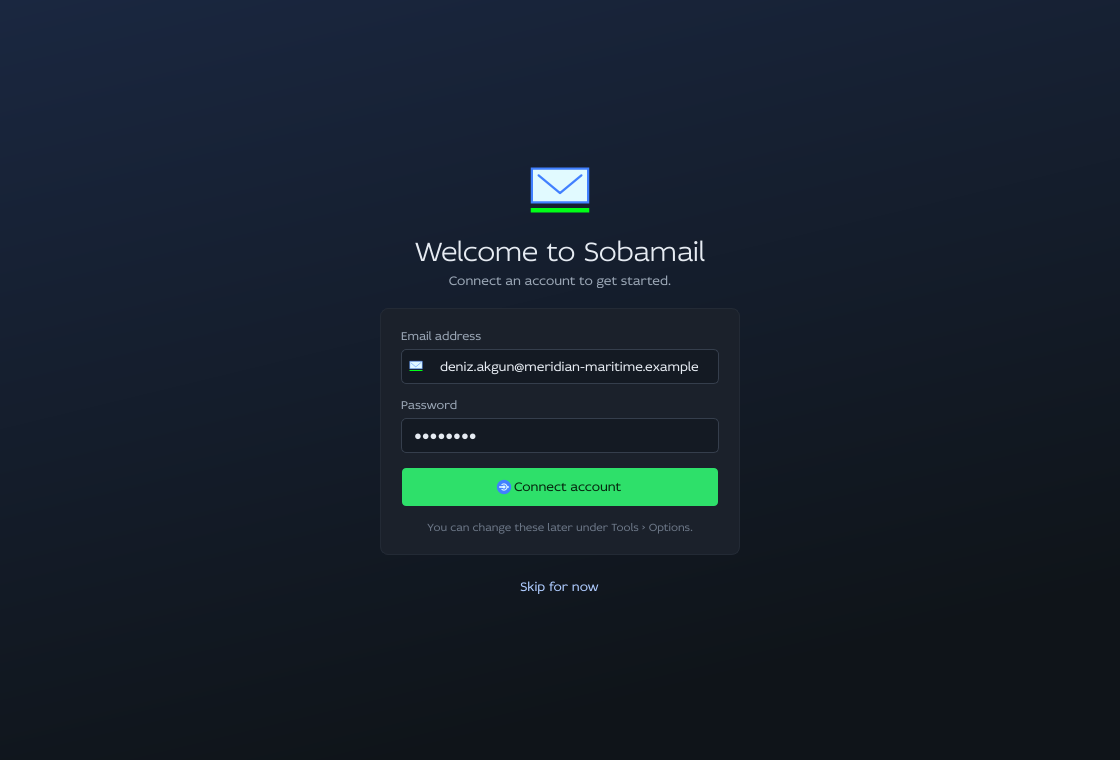
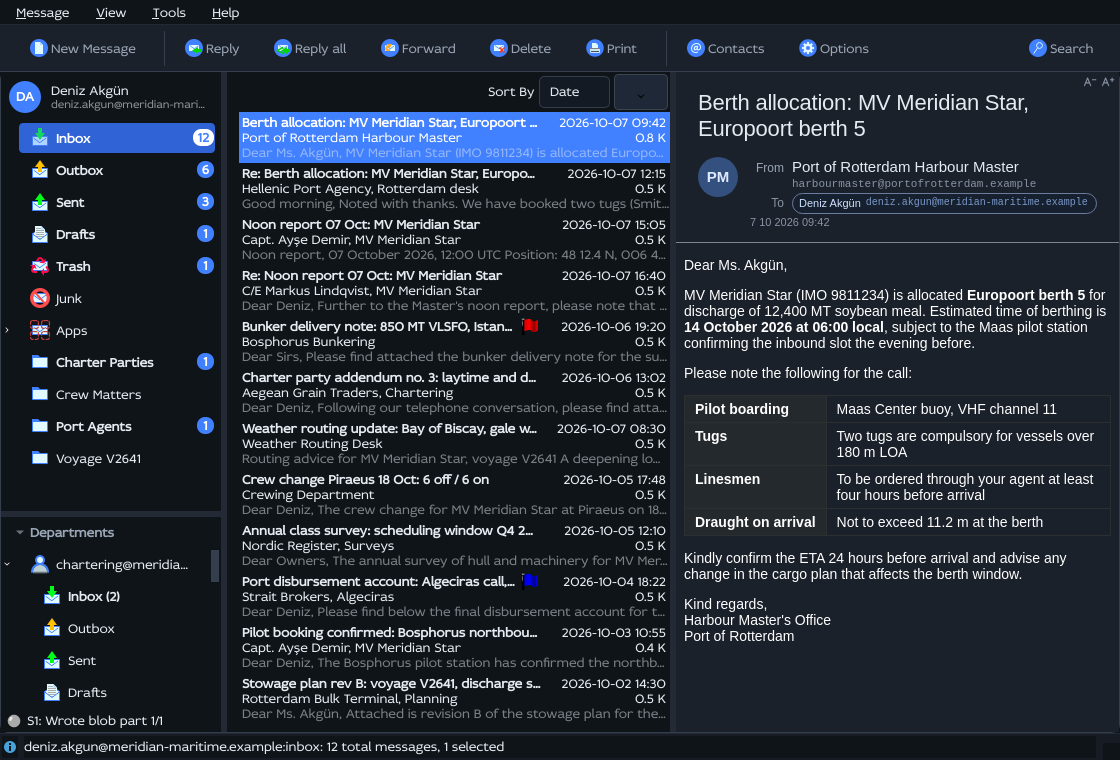
The modern themes also change the folder tree: unread counts are drawn as right-justified pills. The classic themes keep the plain (N) suffix after the folder name.
Interface font
| Choice | Description |
|---|---|
| System Font | Whatever font your desktop supplies. |
| Modern Font | The bundled Idealist Sans face. |
The font is chosen independently of the theme, with one exception: crossing the classic ↔ modern divide pulls the font along to match (modern theme → Modern Font, classic theme → System Font). Switching between two classic themes, or between two modern ones, leaves your font choice untouched.
Theme and font changes need a restart
Selecting a theme or font saves the choice and tells you so; the new look is applied the next time you start the app.
Force light theme on reader pane
This entry appears only while a dark theme is active. Message bodies are written by their senders and many assume a white page, so a dark reader pane can render them badly. Turning this on gives the reader pane an opaque white background while the rest of the app stays dark.
The reading view is rebuilt when you toggle it, so the change is visible immediately.
Toolbar placement
Toolbar layout has its own menu: right-click an empty part of the toolbar area. See Customising the toolbars for the full list — hide the strip, choose button labels, move the strip to another edge of the window, and move the message-action buttons between the main strip and the reader pane.
What is remembered
All of the above is stored with your settings and restored on the next launch, along with the window size, the splitter positions, the current folder, and each folder's list layout.