Notices, Progress, and Updates
This page collects the things the app tells you about without your asking: the banners across the top of the message pane, the background-work indicator in the status bar, and desktop notifications for new mail.
Notice banners
A coloured strip can appear directly above the message list. Banners are reserved for things worth interrupting you over; they stack when several apply, and each carries its own buttons.
Version retirement
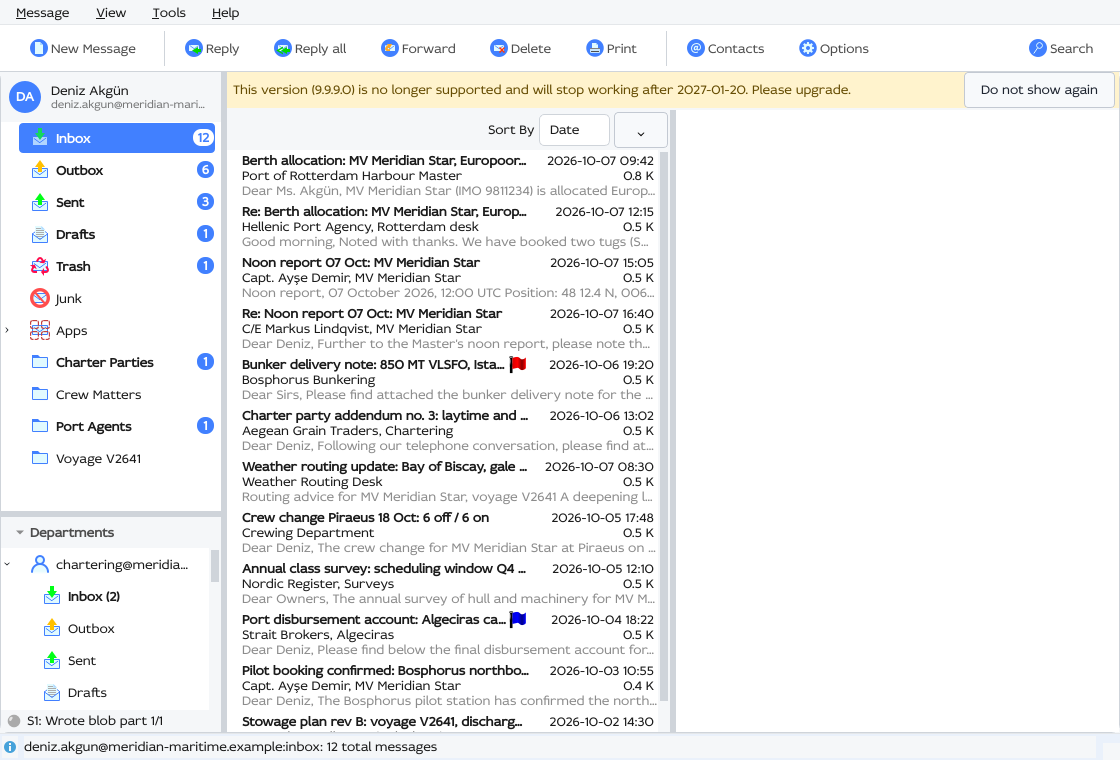
The server tells the app when the build you are running has been scheduled for retirement. The banner has two faces:
| Colour | Text | Meaning |
|---|---|---|
| Amber | This version (…) is no longer supported and will stop working after … | The retirement date is still ahead. Upgrade at your convenience. |
| Red | This version (…) stopped being supported on … and can stop working at any time. | The date has passed. Upgrade now. |
Do not show again dismisses the banner and keeps it dismissed across restarts, so one press settles the announcement even though the server repeats it on every reconnect. The banner returns when the server has something new to say, and a retired build reopens it regardless.
An update is ready
(Available on Windows while the Sobamail Updater service is running.)
A green banner reports that a new version has been downloaded and is waiting: Version … is ready. It will be installed after you quit Sobamail.
| Button | Effect |
|---|---|
| Restart Now | Close the app so the installer can run. Sobamail starts again by itself once the update is in place. |
| Do not show again | Hide the banner for this version. The next release announces itself as usual. |
The installer runs while the app is down. After Restart Now the update installs and Sobamail comes back on its own; on a shared machine it comes back for each user who pressed the button. Quitting any other way installs the update too — you then start the app again yourself.
When the updated Sobamail first runs, a green banner confirms it — Sobamail was successfully updated to version … — once per update; OK dismisses it.
Checking for updates yourself
Help ▸ Check for Updates asks the updater service to look now. The service spaces consecutive checks a minute apart, so the answer can take that long to arrive; it comes back on its own and raises a banner when there is something to report. Carry on working while it runs.
Background work
The right-hand end of the status bar carries a small progress bar for work happening in the background. It appears while work is in flight and clears once the queues drain.
The app tracks five queues:
| Queue | What it counts |
|---|---|
| Remote | Changes produced elsewhere and being applied to this mailbox. |
| Local | Work produced on this machine and being applied here. |
| Requests | Requests queued for the server. |
| Events | Announcements from the server being fetched. |
| Upload | Local changes waiting to be pushed to the server. |
Message operations you start yourself — moving, copying, or deleting messages — get a bar of their own, labeled Moving..., Copying..., or Deleting... and counting the messages processed so far out of the total. Once the messages themselves are through, the same bar switches to Finalizing... and counts the wrap-up work — threading and bookkeeping — so it keeps moving until the operation is truly done. Quick operations come and go without showing anything; a bar appears only when the operation takes a moment, and disappears when it completes.
The corner has one slot, and gives it to whichever bar is moving, rotating between them as they progress. A +N marker beside it counts the bars queued behind the one on screen; hovering names the queue being shown.
Click the corner for a panel listing every live bar with its own label and progress, oldest at the bottom. Click again to dismiss it. The panel follows the window as you move or resize it.
Disconnecting clears the remote side
Going offline empties the Events queue, since those entries are server announcements that a live connection delivers; reconnecting rebuilds the list from a fresh baseline. The local queues keep draining offline, so work you started stays on track.
While the message list itself is loading rows, a spinner turns at the left end of the status bar.
New-mail notifications
With Show notification when a new message arrives turned on in Options ▸ Connection, arriving mail raises a desktop notification showing the sender and subject — plus the folder name when the message did not land in the Inbox.
- Clicking the notification selects the Inbox and puts the cursor on the message that was announced.
- Notifications are rate-limited to one every eight seconds, so a batch of arriving mail produces a single notification rather than a burst. It announces the most recently arrived message.
- Notifications cover mail that lands visibly in a folder; spam-filtered and hidden messages arrive quietly.
While notifications are on, the app keeps a tray icon carrying its logo in the notification area. Clicking the icon brings the main window to the front; its menu offers Minimize, Restore, and Quit. Minimize puts the window on the taskbar and Restore brings it back from there. The window always keeps its taskbar entry. Turning notifications off removes the icon.
Status messages
The middle of the status bar carries a rolling line of progress and status text — background transfers, confirmations, and errors.
Connection-specific events have their own line, under the folder tree next to the connection light, reporting socket, transfer, and reconnect-timer activity.
If you need the full picture for a support request, use Help ▸ Send Event Log.