Certificates
Tools ▸ Certificates opens the Certificates window — a listing of the cryptographic certificates this installation trusts, with the tools to inspect, import, and remove them.
You will generally come here when someone asks you to add or check a specific certificate.
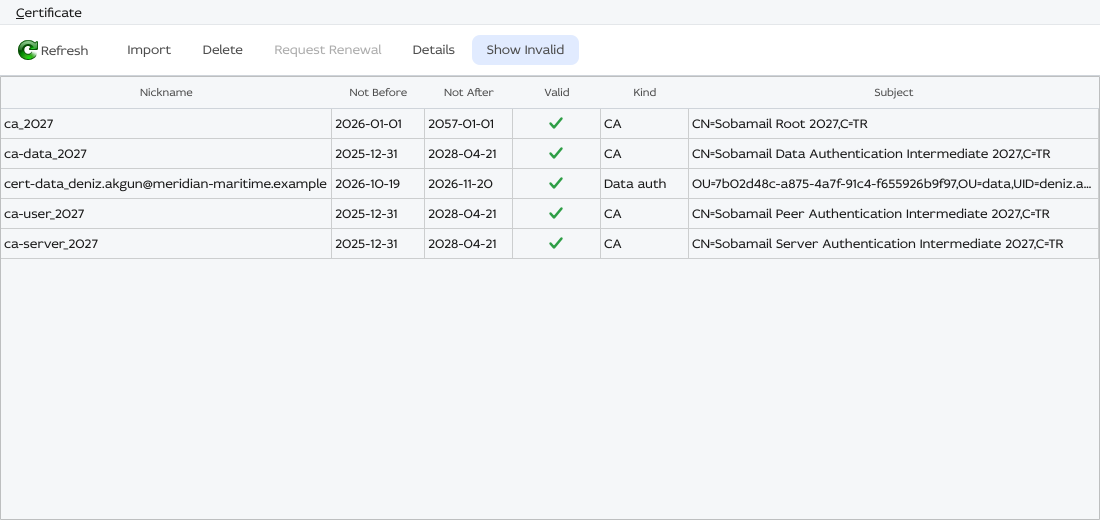
The listing
One row per certificate nickname:
| Column | Shows |
|---|---|
| Nickname | The name the certificate is filed under. |
| Not Before | The start of its validity period. |
| Not After | The end of its validity period. |
| Valid | Whether it validates against a trusted chain —  or or  . . |
| Kind | Local CA for a certificate authority with a path-length limit — the kind a replica issues its own connection certificates from — and CA for any other certificate authority. An end-entity certificate shows the role it serves: Data auth (signing messages), mTLS (the client side of a mutual-TLS connection), TLS server, Code signing, Timestamping or OCSP signing — comma-separated when it serves several. Any other end-entity certificate reads Certificate. |
| Subject | Who the certificate is for. Always the last column, and it expands to fill the window. |
The listing arrives in two passes: the rows appear first, then each Valid cell resolves. A cell awaiting its verdict reads Validation pending; once it lands the cell shows Valid or Not valid. Your selection is kept across the second pass.
Column widths and the window geometry are remembered between sessions.
Toolbar and menu
The same actions sit on the toolbar and under the Certificate menu:
| Action | Shortcut | Effect |
|---|---|---|
| Refresh | F5 | Rebuild the listing from the store. |
| Import… | Ctrl+I | Add a certificate from a file — see below. |
| Delete | Del | Remove the selected certificate — see below. |
| Request Renewal / Renew | — | Replace the selected certificate with a new one — see below. |
| Details | — | Show or hide the details pane. |
| Show Invalid | — | Show or hide certificates that failed validation. |
| Close | Ctrl+W | Close the window. |
Show Invalid and Details both start off, so the window opens on a plain listing of the certificates that check out. Rows awaiting a verdict stay visible whatever Show Invalid is set to.
The details pane
Selecting a row fills the pane beside the listing:
| Field | Shows |
|---|---|
| Nickname | The store name. |
| Subject / Issuer | Who it is for, and who signed it. |
| Serial | The serial number. |
| Validity | The valid-from and valid-to dates. |
| Days left | How long before it expires. |
| Public key | Algorithm and size, e.g. EC, 256 bits. |
| Key usage | What the key may be used for, and whether the extension is critical. |
| Extended key usage | The extended usages, likewise. |
| Basic constraints | CA or End-entity, with the path-length limit for a CA. |
| Subject key id / Authority key id | The key identifiers. |
| Flags | Whether it is self-signed or issued by another certificate, and its X.509 version. |
Below the fields, Certificate chain (leaf to root) lists the chain the selected certificate builds, starting with the certificate itself.
The pane fills in the background, so the window stays responsive while it reads.
Importing a certificate
Import… opens a file picker for DER-encoded certificates (.der, .cer, .crt). Pick one and a preview dialog shows what you are about to add:
| Field | Meaning |
|---|---|
| Subject / Issuer / Serial / Validity | Read from the file, so you can confirm you have the right certificate. |
| Nickname | The name to file it under. Required. |
| Trust | Certificate authority, TLS server, or Untrusted. |
Accept and the certificate is added, then the listing is rebuilt to show it.
The trust setting has to match the certificate
Every import is validated before it is accepted, against two conditions: the trust you choose must suit the certificate, and the certificate must chain to an anchor already in the store. An import that misses either one is refused.
Deleting a certificate
Delete asks for confirmation, naming the nickname and subject of the certificate and warning that the removal cannot be undone.
Deletion takes just the certificate you selected: removing an intermediate leaves the certificates it issued in place.
An imported certificate stays listed until you restart
A certificate the app generated itself leaves the listing as soon as you delete it. One you imported yourself is deleted just as surely, but the underlying certificate store keeps returning its row until the next restart. Restart the app to see the listing settle.
Renewing a certificate
The renewal action sends a brand new certificate signing request for the selected certificate class. Its name follows the selected row:
| Selected certificate | Action | Effect |
|---|---|---|
| Your Data auth certificate or your Local CA | Request Renewal | Asks the server for a new certificate. It arrives in the background; Refresh shows it once it has. |
| Your mTLS certificate for a mail server | Renew | Issues a new certificate under your local CA at once and rebuilds the listing to show it. |
The action is available once the selected certificate is due for renewal — the same point at which the app renews it on its own — and greyed out for any other row. The server is asked at most once a day for each certificate.
Icon reference
| Function | Icon |
|---|---|
| Valid | |
| Not valid | |