The Mailbox Manager
The Mailbox Manager holds your mailbox's settings: your name and homepage, the addresses you send from and the one new messages start out from, and the size limits for the messages you send and receive. It is one of the system apps, so it is always there.
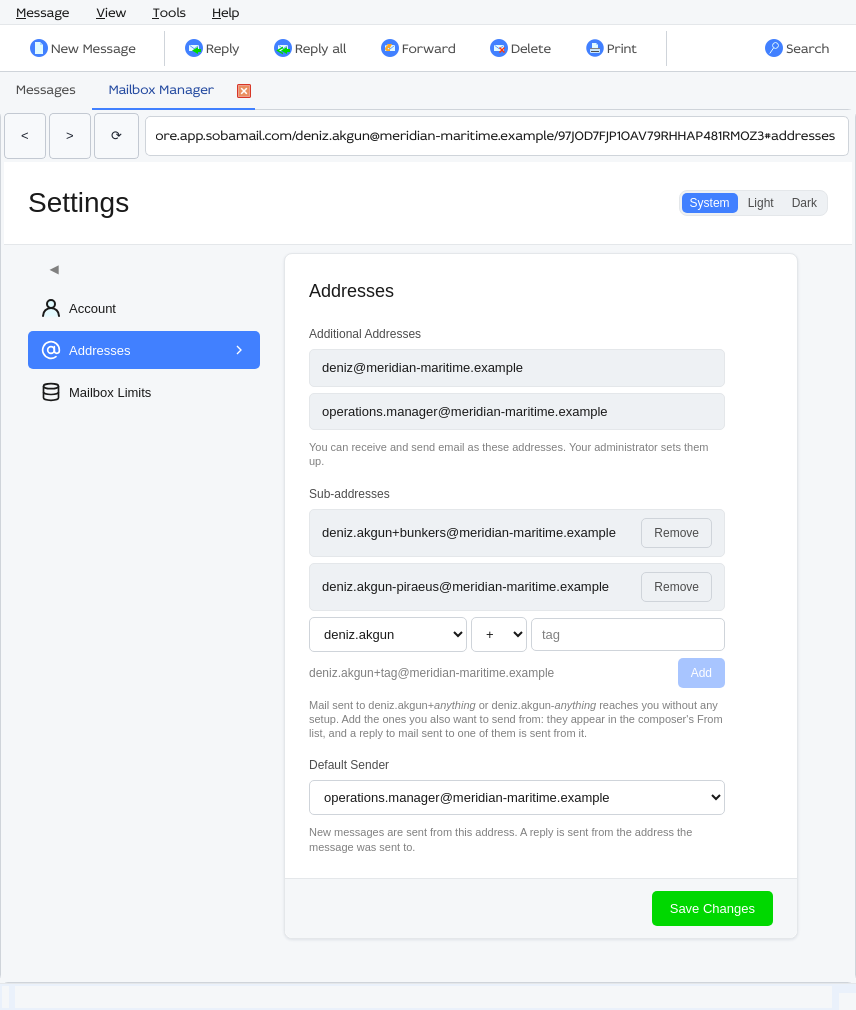
Opening it
| From | How |
|---|---|
| The menu bar | Message ▸ Mailbox Manager opens it in a tab of its own beside your mailbox. |
| The account badge | Click the badge above the folder tree. |
| The folder tree | Expand Apps and select the Mailbox Manager's instance folder. |
The Mailbox Manager shows the settings of your own account's mailbox.
Finding your way around
A column on the left lists the pages: Account, Addresses and Mailbox Limits. The arrow at its top folds the column down to its icons and back.
The System, Light and Dark buttons at the top right set the Mailbox Manager's own colours: System follows your desktop, the other two pick one.
Save Changes, at the foot of a page, saves its fields. The sub-addresses on the Addresses page are the exception: each is added or removed the moment you click Add or Remove.
Account
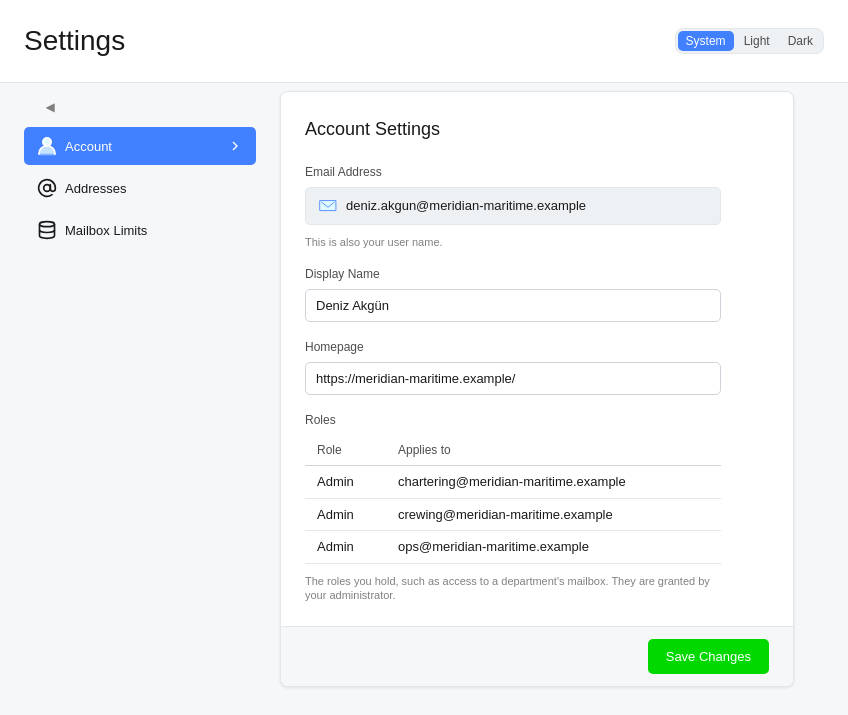
| Field | Meaning |
|---|---|
| Email Address | Your account's address, which is also your user name. |
| Display Name | Your name as your account keeps it. |
| Homepage | The address of your web page. |
| Roles | Shown when you hold roles: what you have been given access to, such as a department's mailbox. Role is the role's name and Applies to what it covers — an address, everyone at a domain, or everything. Your administrator grants them; they are listed here for reference. |
Addresses
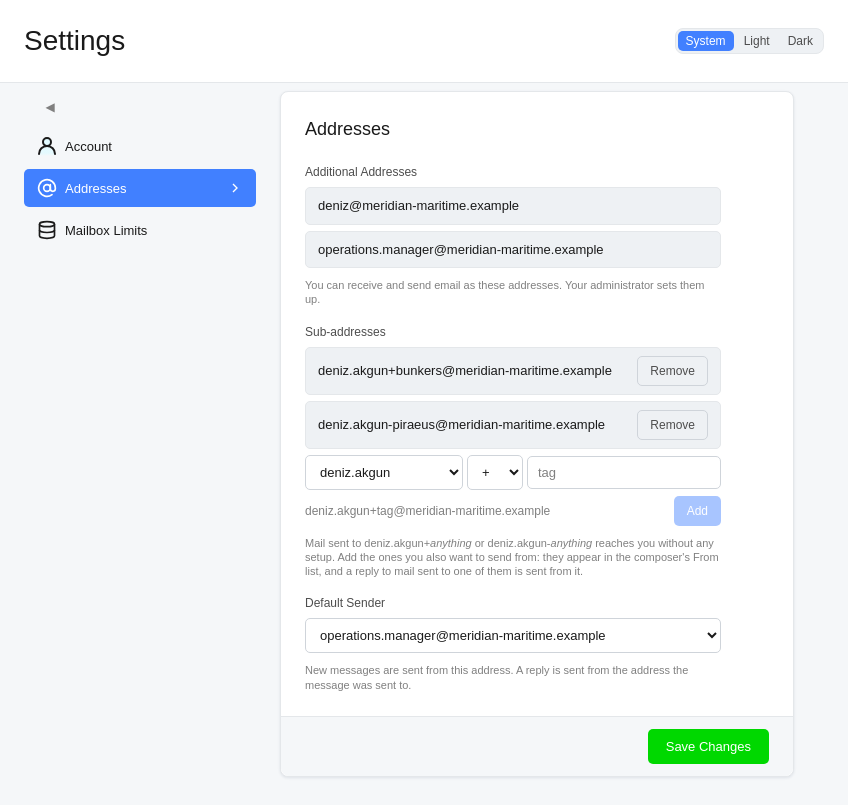
Additional Addresses
The other addresses your account receives mail at and may send from, as your administrator set them up. Each of them is also in the composer's From list (Selecting the sender).
Sub-addresses
Your address takes a tag after a + or a -: mail sent to deniz.akgun+bunkers@meridian-maritime.example or deniz.akgun-piraeus@meridian-maritime.example reaches deniz.akgun@meridian-maritime.example, with nothing to set up first. Giving a supplier or a mailing list an address of its own this way tells you, from the To line, which of them a message came through.
The sub-addresses you add here are the ones you also send from. Each one is in the composer's From list, and a reply to a message that reached you at one of them starts out from it.
To add one:
- Pick the address the sub-address extends — your own, or one of your additional addresses. With no additional addresses, your own is shown as it is.
- Pick the separator, + or -.
- Type the tag, for example
shopping. A tag is letters, digits, dots, dashes and underscores, and starts and ends with a letter or a digit. The line under the fields shows the address you are about to add. - Click Add, or press Enter in the tag field.
The address is added in lower case. If it cannot be added — the tag has a character a tag cannot have, or you have the address already — the reason is shown under the fields.
Remove beside a sub-address takes it away. If it was your default sender, new messages start out from your own address again.
Default Sender
Shown once you have additional addresses or sub-addresses: the address a new message starts out from in the composer's From list. A reply starts out from the address the message reached you at instead; see Selecting the sender for the whole rule.
Mailbox Limits
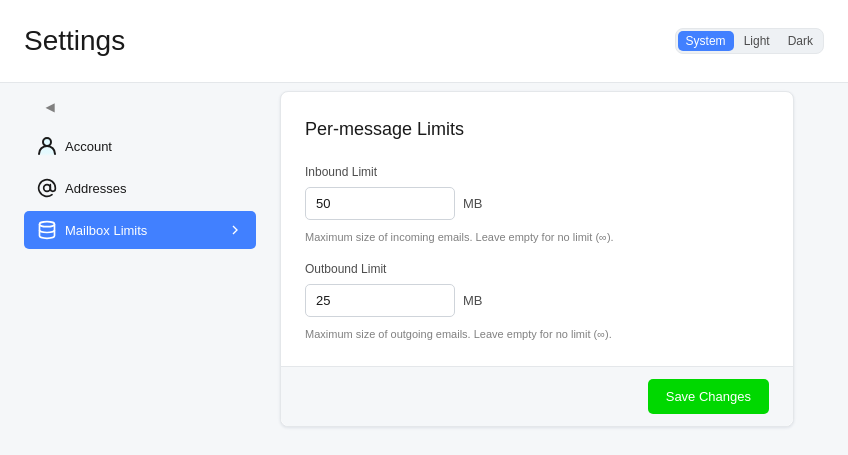
The largest message, in megabytes, your mailbox takes in and sends out:
| Field | Meaning |
|---|---|
| Inbound Limit | The largest message your mailbox accepts. |
| Outbound Limit | The largest message you can send. |
An empty field means no limit, shown as ∞.