Prime Folders
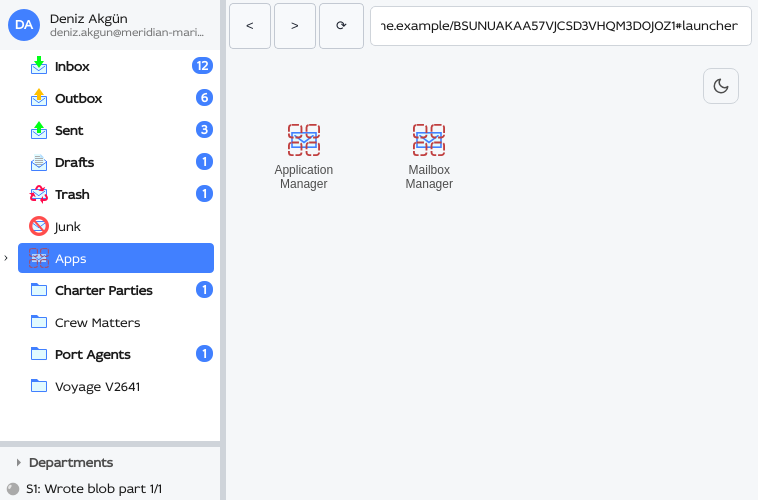
Every mailbox is created with the same set of built-in prime folders. They always exist and always appear in the same order. Unlike regular folders, they cannot be renamed, moved, or deleted. Their names (inbox, outbox, sent, drafts, trash, junk, apps) are reserved, so a regular folder may not reuse them (see New Folder).
| Prime folder | Purpose |
|---|---|
| Inbox | Incoming messages. |
| Outbox | Messages queued to send (including delayed sends). |
| Sent | Messages you have sent. |
| Drafts | Unsent messages saved for later. |
| Trash | Deleted messages and folders. |
| Junk | A view of spam messages gathered from all other folders (except Trash). |
| Apps | The launcher and your installed apps. |
Inbox  
Where incoming messages arrive. If your last folder can no longer be found on restart, the view falls back to a prime folder.
Outbox  
Messages on their way out: anything queued to send but not yet delivered, including delayed (timed) sends. The Outbox exposes extra controls in the message list: Retry Send for a failed message and Cancel Send for one still waiting for its scheduled time. A message leaves the Outbox for Sent once it is delivered.
Sent  
A copy of every message you have successfully sent.
Drafts  
Unfinished messages you have saved for later. Opening one here reopens it in the compose window for editing (see Opening a message).
Trash  
Where deleted messages and folders land first. Deletion is two-stage: items move here and stay recoverable until Trash is emptied or they are deleted again from within Trash, which is permanent. Right-click Trash for Empty Trash.
Junk  
Junk is a view. It gathers every message flagged as spam (by spam score or an explicit junk mark) from every other folder in the account except Trash. Each message it shows still lives in its real folder, whether that is the Inbox or a regular folder; Junk collects them in one place.
Because of this, Junk behaves differently from a normal folder. You cannot drag messages out of it, and its context menu has one entry, Move All to Trash. It moves every message the view has gathered into Trash after a confirmation, and View ▸ Undo (Ctrl+Z) returns them to the folders they came from (see Undo and Redo). Junk also applies its spam filtering on top of any search.
To take a single message out of Junk, use Mark as Not Junk from the message list's context menu; elsewhere, Mark as Junk puts one in.
The Show Junk mail in original folders as well option in Options ▸ General controls the other side of this: when off, spam is hidden from the normal folder views and only surfaces in Junk; when on, those messages appear both in Junk and in the folder they actually live in.
Apps  
The launcher and your installed apps. The Apps row itself is the Launcher; beneath it are an app root per installed app and an app instance folder per running instance. Selecting an app instance opens the app instead of a message list. App folders have their own context menu and include system apps, which cannot be deleted.
A link to an e-mail address inside an app opens a new message in the compose window, with the recipients, subject and text the link carries already filled in.
Jumping to a prime folder
Ctrl+1 through Ctrl+7 jump straight to the prime folders, in the order the tree shows them:
| Shortcut | Folder |
|---|---|
| Ctrl+1 | Inbox |
| Ctrl+2 | Outbox |
| Ctrl+3 | Sent |
| Ctrl+4 | Drafts |
| Ctrl+5 | Trash |
| Ctrl+6 | Junk |
| Ctrl+7 | Apps |
The folder becomes the only selected one, and the keyboard moves to the tree. When the filter is hiding that folder, the filter box closes and every folder comes back.