Organizing Messages
This page covers what you do with the messages in the message list: move, copy and delete them, mark them as junk or as read, flag them, retry or cancel a send, export them, and start a new message from one. It ends with Undo and Redo, which take most of these back.
The operations live on the list's context menu: right-click, or press the menu key. The menu adapts to the current folder and selection, and entries that do not apply are hidden.
| Entry | What it does | Section |
|---|---|---|
| Move ▸ | Move the selection to another folder. | Moving messages |
| Copy ▸ | Copy the selection to another folder. | Copying messages |
| Delete (Del) | Move the selection to Trash, or delete it for good from Trash. | Deleting messages |
| Mark as Junk / Mark as Not Junk | File the selection as spam, or clear the mark. | Junk |
| Mark as Read / Mark as Unread | Set the read state. | Read state |
| Flag ▸ | Give the selection a colour flag, or clear it. | Flags |
| Retry Send / Cancel Send | Re-queue a failed send, or call back a delayed one. | Outbox |
| Save As… (Ctrl+S) | Save the message to a file. | Export and the source |
| Show MIME Source (Ctrl+U) | View the raw message. | Export and the source |
| Download body and attachments | Fetch the full content for offline use. | Downloading on demand |
| Reply, Reply to All, Forward | Answer or pass on the message. | Reply, forward and re-use |
| New Using ▸ | Start a new message from this one. | Reply, forward and re-use |
Selecting messages
Click a row to select it. Shift+Up, Shift+Down, Shift+Page Up and Shift+Page Down extend the selection, and Ctrl+A selects every message in the list, the replies hidden in collapsed conversations included. Operations act on whole rows.
A collapsed conversation counts differently from one operation to the next:
- Move, Copy, Delete and Flag take the whole conversation, with its nested replies.
- Mark as Read, Mark as Unread, Mark as Junk and Mark as Not Junk act on the rows you selected.
After a delete or a move, the selection goes to the nearest surviving message; see Where the selection goes after a change.
Moving messages
Move a selection in either of two ways:
- Choose Move ▸ from the context menu and pick the target folder.
- Drag the selection from the list onto a folder in the folder tree.
The messages leave the list at once, and the nested replies of a conversation go with it. A message that is already in the target folder stays where it is.
Choosing a folder that has subfolders
In the Move ▸ and Copy ▸ submenus, a folder with subfolders opens into them rather than being selectable itself. Its submenu therefore starts with File Here, which means "this folder, not one of its children".
A drop is refused on:
- the account row, and on the folder the messages already sit in;
- Outbox, Junk, Drafts and Apps, and the folders under Apps.
Dragging out of Junk, Outbox and Apps is disabled. Messages in Drafts can be dragged to any other folder that accepts a drop. Move ▸ is greyed out while you are looking at an All Mailboxes search, because the results can come from several mailboxes and no move crosses mailboxes.
Copying messages
Copy a selection with Copy ▸ from the context menu, or hold Shift while you drop it onto a folder. A copy is a new message in the target folder. A message that is already in the target folder is skipped. The target folders and the refusals are the same as for a move, and Copy ▸ is greyed out in an All Mailboxes search as well.
Deleting messages
Delete (Del, the toolbar button, the Message menu or the context menu) moves the selection and its nested replies to Trash. They stay recoverable there: move them back to a folder, or undo the delete.
Deleting a message that is already in Trash removes it for good. A permanent delete cannot be undone, and neither can Empty Trash, which removes everything in Trash after a confirmation; see Trash. From the Junk view, Delete moves the messages to Trash like anywhere else.
Deleting a message closes its open tab or window. If the message is a draft open in a compose window, you are asked whether to delete the draft and close the window.
Junk
Mark as Junk files the selection as spam. It is not offered in Junk, Outbox, Sent or Drafts. Mark as Not Junk clears the mark and is offered only in the Junk view. A not-junk mark beats the spam score, so the message leaves Junk whether the filter or you put it there.
The Junk folder's own menu has Move All to Trash, which moves every message the view gathers into Trash after a confirmation.
Read state
Mark as Read and Mark as Unread are both on the menu. Applying one to messages already in that state changes nothing.
A message you select in the reader pane is marked read after three seconds, so arrowing past a message leaves it unread. A message you open in a tab or a window is marked read at once. The folder tree's unread counts follow every change.
Flags
Flag ▸ offers Clear flag and Flag as Red, Green, Blue, Orange, Magenta, Cyan or Pirate. The colour shows on the row; see The Message List.
Outbox: retrying and cancelling
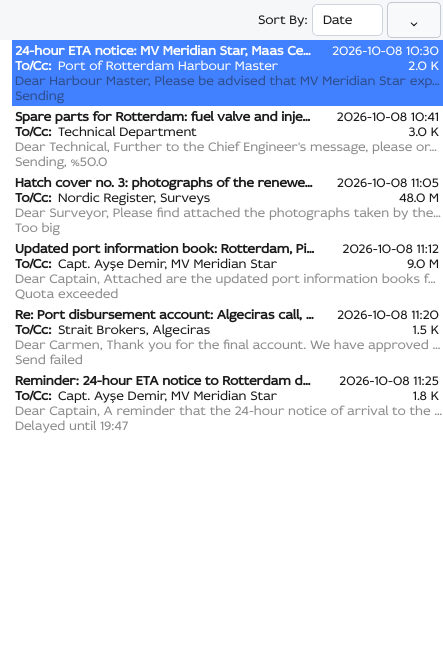
The Outbox adds a Status column, and messages waiting to send expose extra controls:
- Delayed sends show when they are due: Delayed until 14:30, …tomorrow, or with a full date further out. Their context menu offers Cancel Send, which appears at the top of the menu so you can stop a message before its scheduled time. Cancel Send puts the message back in Drafts. A signed message comes back as an unsigned draft, and its signed copy moves to Trash.
- Failed sends show a clickable status; clicking the Status cell pops up a Retry send entry, and the context menu carries Retry Send as well. Either one re-queues the message.
The Status column reads:
| Status | Meaning |
|---|---|
| Pending / Pending, %… | Waiting its turn, with the share already transferred once a transfer has begun. |
| Compressing... | The message is being packed for transfer. |
| Sending / Sending, %… | Transferring, with the share done. |
| Delayed until … | A delayed send waiting for its time (see above). |
| Sent | Delivered to the server; the message is about to move to Sent. |
| Send failed | The transfer failed. The app retries on its own a few times before settling on this; Retry Send is then yours. |
| Too big | The server refused the message as larger than a size limit on this mailbox or on the correspondent. Shrink the message, then Retry Send. |
| Quota exceeded | The server refused the message because this mailbox is over its storage quota. Free up space, then Retry Send. |
| Recipient not whitelisted | The server refused the message because this mailbox is a guest account and one of the recipients is not among the addresses it sends mail to. A guest account sends mail to the Sobamail users who wrote to it. |
Too big, Quota exceeded and Recipient not whitelisted are not retried automatically: the remedy is yours, and the Retry Send entry is offered on all three. The column is sized to its contents, so the longest status is always fully readable.
Export and the source
Save As… (Ctrl+S; Export on the Message menu) saves the message to a file. Show MIME Source (Ctrl+U) shows the raw, on-the-wire form of the message.
Reply, forward and re-use
Shown everywhere except Drafts, where Edit Draft takes their place:
| Action | Notes |
|---|---|
| Reply (Ctrl+R) | Reply to the sender. |
| Reply to All (Ctrl+Shift+R) | Reply to the sender and all recipients. |
| Forward (Ctrl+L) | Forward the message to new recipients. |
| New Using ▸ Same Recipients and Content (Ctrl+E) | Start a new message pre-filled from this one. |
| New Using ▸ Same Recipients | Start a new message to the same recipients, with an empty body. |
Shared mailboxes
In a folder of a shared mailbox, Delete, Move ▸, Copy ▸, Mark as Junk and Mark as Not Junk act only for a holder of the shared mailbox's Admin role. For anyone else they are shown greyed out wherever they appear (Delete on the toolbar and in the Message menu too), and Del does nothing. Reading, marking read or unread, flagging, replying, forwarding and composing in the shared mailbox are open to every member.
As of the time of this writing, messages cannot be dragged out of a shared mailbox's message list or dropped onto the Shared pane. Move them with the message list's Move ▸ submenu. Also as of the time of this writing, a folder stays in its own shared mailbox; see The Shared pane.
Keyboard shortcuts
| Shortcut | Action |
|---|---|
| Del | Delete the selection |
| Ctrl+A | Select all messages |
| Shift while dropping | Copy instead of move |
| Ctrl+Z | Undo |
| Ctrl+Shift+Z | Redo |
| Ctrl+S | Save the message to a file |
| Ctrl+U | Show MIME source |
| Ctrl+R / Ctrl+Shift+R / Ctrl+L | Reply / Reply all / Forward |
| Ctrl+E | New message using the same recipients and content |
Undo and Redo
Undo (Ctrl+Z) and Redo (Ctrl+Shift+Z) are on the View menu. They name the operation they act on, so the menu reads Undo Move 3 messages or Redo Delete message. Each entry becomes available once there is something on it.
What you can undo
- Moving messages to another folder, from the context menu or by dragging onto a folder.
- Copying messages into another folder.
- Deleting messages to Trash.
- The Junk view's Move All to Trash.
- Mark as Read / Mark as Unread, Mark as Junk / Mark as Not Junk and Flag ▸ from the context menu.
- The folder context menu's New Folder, Rename Folder and Move ▸, and moving a folder by dragging it onto a new parent.
- Delete Folder on a folder that is not already in Trash.
Deleting for good, Empty Trash and changes made in an All Mailboxes search are not recorded, so they leave Undo as it was.
How undoing works
Undoing runs as ordinary background work, the same way the operation it reverses did, so it appears in the background-work indicator and the messages reappear in their original folder as it completes. Undoing a copy deletes the copies it made, for good; the messages it copied from stay where they are. Redoing a copy makes the copies again.
Undoing a read, junk or flag change puts every message back in the state it was in individually, not in one shared state. Marking a mixed selection read and then undoing leaves the messages that were already read alone, and undoing a flag gives each message the colour it had before, or no flag if it had none. A message you have changed again in the meantime keeps its newer state, and a copy you have moved elsewhere since is not deleted.
Undoing a folder operation puts the folder back the way it was: a rename gets its old name, a moved or deleted folder returns to the folder it came from, and a new folder is removed, permanently, and only while it is still empty. A folder whose name or place has since been taken by another folder is left where it is.
History
Each window keeps its own history of its last 100 operations, for as long as it is open. The history is not kept across a restart. Selecting a folder in another mailbox, for example in a shared mailbox, or in another account starts a fresh one.