The Message List
The message list shows one row per message in the current folder. This page describes what a row shows and how the list changes with the layout you pick. Navigating and Searching Messages covers moving through the list, acting on a selection, and searching.
Two settings
View ▸ Message List holds two independent settings:
| Setting | Choices |
|---|---|
| Threading | Hierarchical: replies nest under the message they answer. Flat: one row per message. |
| Row layout | Simple View off: one column per field, with a header. Simple View on: one compact block per message. |
Both settings apply to every folder in the mailbox. Your choice is remembered and used the next time you open the app.
Conversations
In Hierarchical mode a reply sits under the message it answers, so a conversation is one expandable tree. Rows that have replies carry an arrow at the left. Click the arrow, or press Right and Left on the selected row, to open and close the conversation. Each conversation keeps its open or closed state between sessions.
A closed conversation with unread replies carries a small count at the right end of its subject. The count is the number of unread messages inside. It disappears when you open the conversation or read the messages.
Sorting by date places a conversation by its latest activity, so a conversation with a new reply moves up.
In Flat mode every message is its own row and there are no arrows. A search across several mailboxes always shows a flat list, whichever mode you chose.
Columns
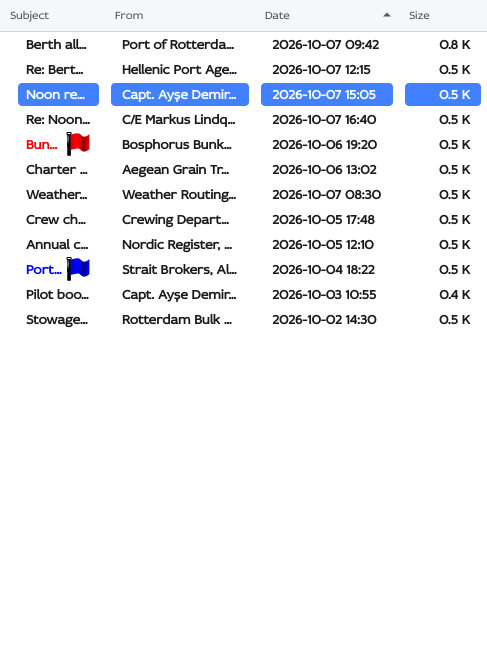
With Simple View off, the columns depend on the folder:
| Folder | Columns |
|---|---|
| Inbox | Subject, From, Date, Size |
| Outbox | Subject, Recipients, Date, Size, Status |
| Sent, Drafts | Subject, Recipients, Date, Size |
| Trash | Subject, Recipients, From, Date, Size |
| Junk | Subject, From, Folder, Date, Size |
A Folder column joins the others when a search spans several folders, and names the folder each result lives in. The Status column of the Outbox is described under Outbox: retrying and cancelling.
| Column | Shows |
|---|---|
| Subject | The subject, followed by the marks described below. It takes the width the other columns leave. |
| From | The sender's name, or the address when the message carries no name. For a colleague, a dot at the right edge shows their status. |
| Recipients | The names of the To, Cc and Bcc recipients, or their addresses when there is no name, separated by commas. |
| Date | When the message was sent, in your local time, as 2026-11-09 14:30. |
| Size | The size of the message, right-aligned. |
| Folder | The folder of the message. |
Drag a header to reorder the columns and drag its edge to resize it. Order and widths are remembered separately for each layout and each kind of folder. The Inbox and the Outbox each keep their own columns, and switching to Simple View and back returns the columns as you left them.
Simple View
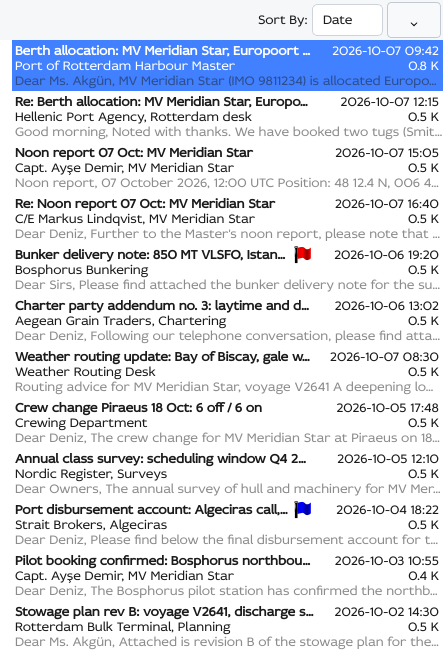
Simple View gives each message a block of lines. The list has no header; a Sort By: control above the list takes its place. The lines depend on the folder:
| Folder | Lines |
|---|---|
| Inbox, Junk | Subject and date; sender and size; preview. |
| Sent, Drafts | Subject and date; To/Cc: and the recipients, with the size; preview. |
| Outbox | Subject and date; To/Cc: and the recipients, with the size; preview; the sending status. |
| Trash | Subject and date; From: and the sender, with the size; To/Cc: and the recipients; preview. |
The preview line is muted and shows the first words of the body, or \<Empty message> when there are none. A message without a subject reads \<No subject>, one without a sender reads \<Unknown Sender>, and one without recipients reads \<Unknown Recipients>.
In Junk, and in any search that spans several folders, a line above the subject names the folder of each message: the mailbox with its icon, then the folder with its icon. Junk leaves out the mailbox.
For a colleague, the dot sits at the right end of the sender line.
The marks on a row
The subject carries its marks at the right end, next to the date or the unread count. Whichever layout you use, a message shows only the marks that apply to it:
| Mark | Meaning |
|---|---|
 | The message has attachments. The number is how many. When some are not downloaded yet, it reads 2/3: two of three are here, and the badge turns orange. |
 | A moderate spam score. The tooltip reads Probably spam. |
 | A high spam score. The tooltip reads Possibly spam, or Marked as spam for the highest scores. |
 | You marked the message as junk. This mark shows whatever the score. |
 | The sender is blocked. |
 | The message is signed and the signature verifies. |
 | The message is signed and the signature does not verify. |
 | The message is signed and the signature is not verified yet. |
 | You are in a chat about the thread in the Chat app. A thread has one chat. In the threaded list the mark sits on the thread's top message; in the flat list every message of the thread carries it. Click the mark to open the Chat app in its tab on that chat. |
A clean message carries no spam mark. An unsigned message carries no seal in the list; the reader pane shows its hollow seal. See Signing Messages for what the seals mean.
Three more marks sit among these:
- A flag shows the colour you gave the message: red, green, blue, orange, magenta, cyan or black. Point at it to read the name; black reads Pirate Flag!.
- A message you replied to carries a blue arrow, a message you forwarded an orange arrow, and a message you did both with carries both.
- A message that is an app carries the app symbol as its rightmost mark. The app takes the place of the attachment badge, because the app's files are its attachments.
Unread chat messages
When the chat about a thread holds messages you have not read, a red dot blinks on the thread's chat mark, and a red badge left of the mark shows how many there are. Click the mark or the number to open the chat. The dot and the number go when you read the chat in the Chat app.
When such a message is outside the visible part of the list, a round button floats over the list. It shows the chat mark with the blinking dot, and under it the number of messages with unread chats in that direction:
- The button at the top right counts the messages above the visible rows.
- The button at the bottom right counts the messages below them.
Both buttons show when there are such messages in both directions. Click a button to scroll to the nearest of its messages. The selected message stays selected.
The sender's dot
For a colleague, a dot at the right end of the sender shows whether they are online:
| Dot | Meaning |
|---|---|
 | Online. |
 | Offline. |
 | The status is not known yet. |
Point at a green or red dot to read the status, as in Ada Lovelace is online. A sender who shares no group with you carries no dot.
Row styling
- An unread message is set in bold. Opening it, or marking it read, returns it to regular weight.
- With Simple View off, a flagged message is set in the colour of its flag.
- With Simple View off, a message whose body has not been downloaded is dimmed to grey, so you can tell it from the messages you can read at once. See Downloading on demand.
- The row under the pointer is highlighted, and the selected rows take the selection colour.
- On a dark theme the seals and the dots use lighter shades, so they stand out from dark rows.
Sorting
With Simple View off, click a column header to sort by that column and click again to reverse the order. The date and size columns resize to their contents when you sort by them.
With Simple View on, the Sort By: control above the list does the same. The control and the header stay in step: whichever you use, the other reflects it, and the choice is saved.
Sorting on text columns follows the language your mailbox was set up in, so accented and language-specific letters land where a reader of that language would expect them.